Pages

Showing posts with label OBIEE 12C. Show all posts

OBIEE Presentation Variable Syntax


Usually, we will use presentation variable which holds only one value.

Syntax:

@{Presentation_Variable_Name}

What if , there is a scenario where the user selection in prompt is multiple selection.

Then the normal syntax to call presentation variable doesn't work.

Solution for this scenario is, using the different syntax for presentation variable which contains multiple values.

Syntax:

@{Presentation_Variable_Name}['@']{'Default'}


OBIEE Presentation Variable Syntax


Usually, we will use presentation variable which holds only one value.

Syntax:

@{Presentation_Variable_Name}

What if , there is a scenario where the user selection in prompt is multiple selection.

Then the normal syntax to call presentation variable doesn't work.

Solution for this scenario is, using the different syntax for presentation variable which contains multiple values.

Syntax:

@{Presentation_Variable_Name}['@']{'Default'}


Renaming Presentation Objects in OBIEE 12c RPD


Today I faced  issue while renaming presentation layer objects.
I checked the rpd file whether it is read only mode. but it was not.

after that I found solution by following these steps.

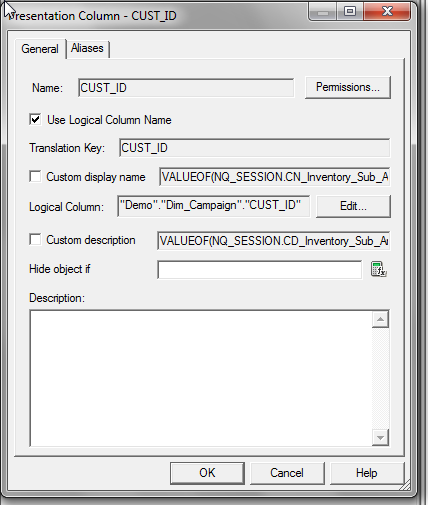
in below snap you can see, the name of the column is not editable.  even though if  I uncheck the "Use Logical Column Name"  I was not able to edit.

 So I followed the below steps.

in administration tool go to > Tools > Options > General

in General tab scroll down the options and check the Edit presentation names as shown in below image.


Renaming Presentation Objects in OBIEE 12c RPD


Today I faced  issue while renaming presentation layer objects.
I checked the rpd file whether it is read only mode. but it was not.

after that I found solution by following these steps.

in below snap you can see, the name of the column is not editable.  even though if  I uncheck the "Use Logical Column Name"  I was not able to edit.

 So I followed the below steps.

in administration tool go to > Tools > Options > General

in General tab scroll down the options and check the Edit presentation names as shown in below image.


Uploading RPD in OBIEE 12 C

Uploading RPD in OBIEE 12 C


C:\Oracle\Middleware\Oracle_Home\user_projects\domains\bi5\bitools\bin>data-mode

l-cmd.cmd uploadrpd -I C:\Oracle\Middleware\Oracle_Home\bi\bifoundation\server\t

est.rpd -SI ssi -U weblogic

Password:

RPD Password:

Service Instance: ssi


Creating an ODBC source for database

Click on Add and choose the driver


Creating a system DSN to open an online rpd

Click on Add and choose Oracle BI Server/Server name

Uncheck Clustered DSN


Click on Next and enter BI server login ID and port number


Find port number by logging into em
Business Intelligence>biinstance>Availablity>Processes

Featured post

Snowflake - Creating warehouse in Snowflake

Creating warehouse Login to Snowflake and click on warehouse and click on Create fill the necessary details and click Finish We can also c...